

Notes — overview
Notes are at the heart of Scripvio for capturing a service, sermon, Bible study, or structured reflection. They combine rich text, metadata (speaker, place, event type), sections, Bible references, and a draft → published flow built for daily use and offline work.
This guide sets the foundation before step-by-step tutorials (create, edit, sections, PDF).
What are notes for?
Section titled “What are notes for?”| Use | What you put in |
|---|---|
| Service / sermon | Title, speaker, location, gathering date, global summary, parts per section |
| Bible study | Structure by passages, linked verses, comments |
| Structured reflection | Thematic sections, quotes, closing summary |
Notes do not replace a personal journal (mood, tags, Tracking links) or Search alone: they organize what you want to find and share (PDF) once published.
Where to work by status
Section titled “Where to work by status”| Status | Where in the app | What you do |
|---|---|---|
| Draft | Create → Notes segment (list + +) | Create, edit, publish |
| Published | Library → Notes segment | Read, favorites, PDF export, new version |
→ Create hub · Drafts and published
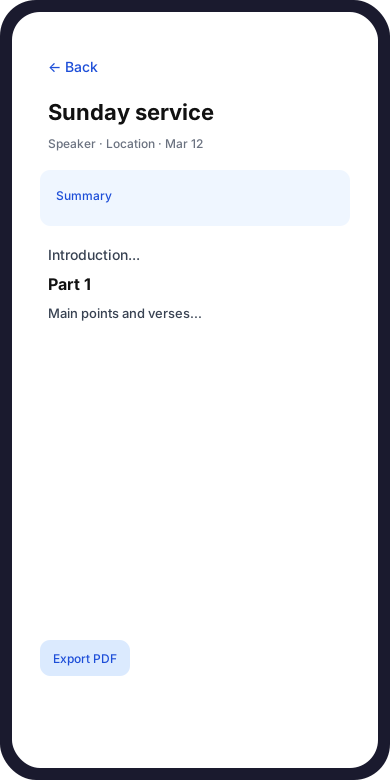
Reading a published note: title, summary, and section content.
Anatomy of a note
Section titled “Anatomy of a note”A Scripvio note is more than a text block: it is structured for rereading and sharing.
Header and metadata
Section titled “Header and metadata”| Field (app label) | Role |
|---|---|
| Title / theme | Main identifier; required to publish |
| Speaker | Preacher or speaker name (suggestions available) |
| Location / assembly | Church or meeting place |
| Event type | Service, study, etc. (picker list) |
| Gathering date | Date only or date + time range (start / end) |
These appear in the editor and in read mode (Read screen), under Details.
Global summary
Section titled “Global summary”- Section heading: Global summary of the note
- Rich text (light formatting: bold, lists, etc.)
- In-app hint: summarizes the whole sermon or meeting; shorter per-part summaries live in each section above.
Sections
Section titled “Sections”Sections split the body (sermon points, study parts). Each section can have:
- a title;
- content (rich text);
- an optional section summary (collapsible).
Bible references
Section titled “Bible references”Bible references block: verses or passages linked to the note (manual add or from Search tab into a draft only). Reorder, comment, edit, or delete per reference.
Note editor (draft)
Section titled “Note editor (draft)”The Note screen is the main workshop:
| Feature | Behavior |
|---|---|
| Autosave | Title, summary, speaker, location: saved after a short typing pause (subtle indicator: loading, check, error) |
| Draft badge | Reminds you the note is not published yet |
| Publish | Confirmation: The note will appear in the Library. Publishing closes this draft… |
| View read-only | Preview read layout without leaving edit |
| Delete | Removes the note from your account (stronger confirmation if already published) |
Publish
Section titled “Publish”- Add a title (otherwise: Add a title before publishing.).
- Tap Publish → confirm in the dialog.
- Possible messages:
- Note published. (online)
- Publish queued (offline). (sync later)
After publish, the note is available under Library → Notes with the Published badge.
→ Create a note · Draft and publish
Reading a published note
Section titled “Reading a published note”From Library, tap a note → Read screen:
- layout optimized for reading (summary → sections → references → details);
- Edit button (creates or opens a new version draft when applicable);
- Export as PDF… and New version… menus (published notes).
PDF export usually needs a connection; if local edits are not synced, the app may offer sync before export.
→ Export PDF and share · Edit a note
New version (fix a published note)
Section titled “New version (fix a published note)”To rework Library content without hiding it immediately:
- New version… menu (read or list).
- Scripvio creates a draft from the published version.
- The draft appears under Create → Notes.
- After editing, Publish replaces the visible Library version.
Reminder in the app: the Library stays unchanged until the new draft is published.
Library — find published notes
Section titled “Library — find published notes”Library → Notes segment (Your personal notes):
| Tool | Use |
|---|---|
| Search | Title, summary, speaker, location |
| Filters | All, favorites, drafts only*, published only*, untitled (per screen) |
| Sort | Last updated, created, title A→Z / Z→A |
| Event type | Dedicated filter |
*In the Library, the catalog is mostly published; active drafts live in Create.
Empty state: No published notes — The Library shows published content only. Create a note in Create, then publish it.
Offline and sync
Section titled “Offline and sync”Scripvio is offline-first for notes:
| Situation | Behavior |
|---|---|
| No network | Banner: No connection. Your changes are saved on this device… |
| Pending changes | Changes are waiting to sync… |
| Syncing | Syncing with the server… |
| Sync failed | Sync failed… automatic retry. |
You can create and edit drafts offline; publish may be queued until you are back online.
Structured Bible references (book/chapter picker) may need downloaded metadata: offline, type the passage in text and add a structured reference when online.
→ Offline mode · Sync
Link to Bible Search
Section titled “Link to Bible Search”From Search, you can add a verse to a draft note only (not to a published Library note). If the list is empty: create a note from Create → + → Note.
Typical flow (Sunday to PDF)
Section titled “Typical flow (Sunday to PDF)”flowchart TD A[Create + Note] --> B[Draft editor] B --> C[Metadata + sections + verses] C --> D[Publish] D --> E[Library Notes] E --> F[Read + PDF] E --> G[New version if fix] G --> B| Step | Guide |
|---|---|
| 1. Create | Create a note |
| 2. Structure | Sections and parts |
| 3. Verses | Bible references |
| 4. Publish | Draft and publish |
| 5. Share | Export PDF |
Notes vs journal
Section titled “Notes vs journal”| Note | Journal | |
|---|---|---|
| Goal | Structured report (service, study) | Personal, mood, tags |
| Structure | Sections, speaker, event type | Rich text, mood, Tracking link |
| Yes (when published) | No (in-app reading) | |
| Create hub | Create → Note | Create → Journal entry |
Frequently asked questions
Section titled “Frequently asked questions”My note is not in the Library.
It is still a draft → Create → Notes → open → Publish with a title.
Can I publish without a title?
No: Add a title before publishing.
How many untitled draft notes can I create?
At most two; then give one a title (see Create).
Where do I edit a published note?
New version… → draft in Create → edit → publish again.
Does my note text change if I change app language?
No. Only the interface changes; your writing language stays the same.
Can I delete a published note?
Yes, with a stronger confirmation (This note was published. Deletion is permanent…).
Detailed guides (Notes section)
Section titled “Detailed guides (Notes section)”| Topic | Link |
|---|---|
| Create a note | Create a note |
| Edit / editor | Edit a note |
| Draft and publish | Draft and publish |
| Sections | Sections and parts |
| Verses | Bible references |
| PDF and share | Export PDF |
Start with Create a note if you are new to Scripvio, or Sections and parts if you already take long sermon notes.