

Discover the home screen
The Home tab (first button in the bottom bar) is your dashboard: it summarizes your day, offers shortcuts, and helps you pick up where you left off.
Open Home
Section titled “Open Home”- Sign in to Scripvio.
- If you are on another tab, tap Home in the bottom bar (house / hub icon).
- The screen loads: a banner may appear at the top if you are offline or if sync is in progress (same as on other note screens).
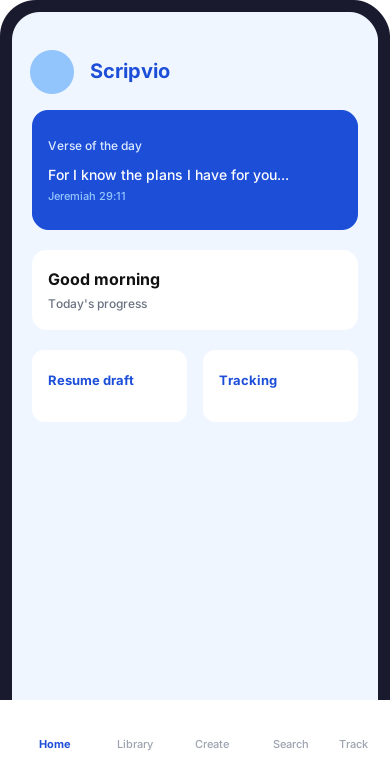
Home tab: verse of the day, daily overview, and the five bottom tabs.
Top bar
Section titled “Top bar”At the top of Home, a fixed bar contains:
| Element | Action |
|---|---|
| Avatar (photo or placeholder) | Opens profile and settings (language, theme, notifications, password) |
| Scripvio title | App identity — you are in the main space |
| Logout icon | Signs out (with a warning if data is not yet synced while offline) |
Verse of the day
Section titled “Verse of the day”Just below the top bar, a highlighted card shows the verse of the day:
- a Bible passage (quote and reference, e.g. Jeremiah 29:11);
- a polished visual background for reading.
This block is inspirational and informational — it does not change your notes. Wording may come from the server or a built-in fallback when offline, depending on your version.
“Hello” block and today’s progress
Section titled ““Hello” block and today’s progress”Next you see a personal summary:
Greeting and date
Section titled “Greeting and date”- Hello, [first name] — uses the first name on your profile;
- today’s date (formatted for your language).
Summary line
Section titled “Summary line”One sentence summarizes your situation, for example:
- progress on today’s tracking (reading, prayer, meditation);
- or an insight (pending drafts, activity this week, reading streak, etc.).
Progress ring
Section titled “Progress ring”A progress ring shows how many of the three tracking practices (reading, prayer, meditation) are already logged today (0%, 33%, 66%, or 100%).
| Progress | Meaning |
|---|---|
| Empty or low | None or only one practice logged today |
| Partial | One or two of three |
| Complete | Reading, prayer, and meditation all logged for the day |
To log a practice: Tracking today section below, or the Tracking tab.
Quick actions
Section titled “Quick actions”The Quick actions heading introduces a grid of shortcuts (several buttons across two rows). Each opens the right flow directly:
| Button | What it does |
|---|---|
| Journal | Starts a new journal entry (Create tab, journal flow) |
| Reading | Opens Bible reading log (Tracking) |
| Prayer | Opens prayer log (Tracking) |
| Meditation | Opens meditation log (Tracking) |
| Research | Switches to Research tab (Bible) |
| Drafts | Goes to Create to find your drafts (notes and journal) |
Tracking today
Section titled “Tracking today”The Tracking today section shows the three pillars and their status for today:
- Bible reading — done or to do;
- Prayer — done or to do;
- Meditation — done or to do.
Tap a row to log or complete the activity (Tracking module screen).
Week chart
Section titled “Week chart”When data exists, a 7-day mini chart shows recent activity (reading, prayer, meditation combined). It helps you see at a glance whether you have been steady this week.
→ Full guide: Tracking — overview
Journal to resume
Section titled “Journal to resume”If you have recent journal drafts, a Journal to resume list shows them (title or “Untitled”).
- Tap a row to reopen the editor and keep writing.
- If there are no drafts, a message like No journal drafts appears — that is normal.
Published entries are not listed here — they are under Library → Journal.
At a glance (chips)
Section titled “At a glance (chips)”When several indicators are available, chips may appear under At a glance, for example:
- number of draft notes;
- journal drafts;
- notes edited this week;
- reading streak (days in a row);
- active days this week.
These chips are informational — they do not replace Library or Create screens, but highlight what deserves attention.
Recent searches (online)
Section titled “Recent searches (online)”When you are online and have searched the Bible before, Recent searches lists your latest queries (a few entries).
- Tap a row to return to the Research tab.
- This section may be hidden in partial offline mode (some data needs the network).
Recent published journal (online)
Section titled “Recent published journal (online)”Similarly, Recent published journal may show a few already published journal entries:
- tap a row to open read mode in the Library;
- handy for a quick reread without Library filters.
Resume
Section titled “Resume”The Resume section is one of the most useful day to day.
Action buttons
Section titled “Action buttons”Two wide buttons:
| Button | Effect |
|---|---|
| Library | Opens Library tab (published notes by default) |
| New note | Starts creating a note (Create flow) |
Recently modified
Section titled “Recently modified”A horizontal (scrollable) list shows up to three notes modified recently (sorted by last update).
- Tap a card to open the note in read mode;
- See all (if shown) leads to the Library for a wider view.
If you have no notes yet, a message invites you to use Create or the Library.
Module cards (glass cards)
Section titled “Module cards (glass cards)”Lower on the screen, three glass-style cards summarize your content:
My study
Section titled “My study”- Subtitle like “X note(s) updated this week”;
- progress ring tied to weekly activity;
- tap the card → Library.
Church notes
Section titled “Church notes”- Visual stats: drafts, published, favorites, total (numbers on the card);
- last modified date for a note (or a message if no notes / no offline cache);
- publication progress ring (share of notes with a published version);
- tap the card → Library.
Journal
Section titled “Journal”- Subtitle like “X draft(s) · Y published”;
- tap the card → Library (select Journal segment at the top).
Diagram: Home and other tabs
Section titled “Diagram: Home and other tabs”flowchart TB subgraph home [Home tab] V[Verse of the day] H[Hello + day progress] A[Quick actions] S[Tracking today] R[Resume + recent notes] M[My study / Church notes / Journal cards] end L[Library published] C[Create + Drafts] B[Bible Research] T[Tracking detail] home -->|Library| L home -->|New note / Journal| C home -->|Research| B home -->|Reading Prayer Meditation| TOffline behavior
Section titled “Offline behavior”| Element | Offline |
|---|---|
| Home, greeting, quick actions | Usually yes |
| Recent notes (local cache) | Yes if already loaded |
| “Church notes” statistics | Partial — message if no cache |
| Recent searches, recent published journal | Often hidden or incomplete |
| Grey banner | May say that some data needs a connection |
After reconnecting, pull to refresh or switch tabs and return to Home to update the figures.
→ Offline mode · Synchronization
Typical flows from Home
Section titled “Typical flows from Home”After Sunday church
Section titled “After Sunday church”- New note (Resume or Quick actions → via Create).
- Write in draft, add sections and verses.
- Publish → find the note in Library.
In the morning
Section titled “In the morning”- Read the verse of the day.
- Log Reading or Prayer via Quick actions or Tracking today.
- Check the progress ring for what is left today.
Resume a journal in progress
Section titled “Resume a journal in progress”- Journal to resume section → tap the draft.
- Or Drafts in Quick actions.
Explore a Bible passage
Section titled “Explore a Bible passage”- Research in Quick actions.
- Find the verse → Add to a note (draft only).
What Home does not do
Section titled “What Home does not do”To avoid confusion:
| Need | Right place |
|---|---|
| Full note list with search | Library → Notes |
| Published journal list | Library → Journal |
| Edit a forgotten draft | Create → Drafts |
| Search your personal texts | Library (not Research) |
| Search the Bible | Research |
| Export a note to PDF | Open published note from Library → menu → PDF |
| Change language or reminders | Avatar → Settings |
FAQ about Home
Section titled “FAQ about Home”Why don’t my “published” counts update?
You may have edited a draft without publishing. Publish from the editor, then return to Home.
I don’t see my new note under “Recently modified”.
The list is limited (a few notes). Open Library or Create → Drafts.
The verse of the day doesn’t change.
It may update on the server by date; offline, a fallback text may show.
Where is the five-tab menu?
Always at the bottom of the screen; Home is the first tab.
Next documentation steps
Section titled “Next documentation steps”| Next step | Link |
|---|---|
| Publish and find your notes | Library |
| Create note or journal | Create |
| Log reading / prayer | Tracking |
| Short questions | FAQ |