

Sign in
Once your account exists, Sign in opens the Scripvio app: Home, Library, Create, Bible search, and Tracking. This guide covers sign-in, password reset (via an email code), and sign out.
When do you see this screen?
Section titled “When do you see this screen?”| Situation | What you see |
|---|---|
| First launch without an account | Sign in (with a link to create an account) |
| After sign out | Sign in |
| Expired or invalid session | Sign in (you may see an error message) |
| Normal launch, already signed in | Home and the five bottom tabs directly |
Scripvio stores your session securely on the device: you usually do not need to re-enter email and password every time, as long as the session stays valid.
Sign in step by step
Section titled “Sign in step by step”1. Open the Sign in screen
Section titled “1. Open the Sign in screen”- Launch Scripvio on your phone or tablet.
- If you are not signed in, the Sign in screen appears:
- headings Welcome / back.
- subtitle: Continue your spiritual journey.
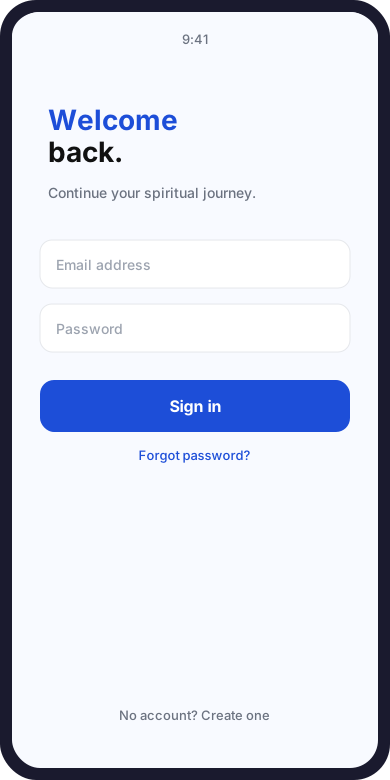
Sign-in screen: email, password, and the Sign in button.
2. Enter your credentials
Section titled “2. Enter your credentials”| Field | Label in the app |
|---|---|
| Email address (e.g. name@example.com) | |
| Password | Password |
An eye icon on the password field lets you show or hide what you type.
3. Submit
Section titled “3. Submit”- Tap Sign in (main button).
- On success, you immediately reach the five bottom tabs.
No account yet?
Section titled “No account yet?”At the bottom: Don’t have an account? → tap Create an account.
Sign-in error messages
Section titled “Sign-in error messages”| Message (or similar) | Likely cause | What to do |
|---|---|---|
| Email and password are required. | Empty field | Fill in both fields |
| Could not sign in. Try again. | Wrong email/password, unknown account, or server issue | Check spelling; use Forgot password? |
| Network / generic failure | No Internet or server unavailable | Turn on Wi‑Fi or mobile data and retry |
Forgot password
Section titled “Forgot password”Scripvio resets your password with a numeric code by email, which you enter in the app—not by completing everything from the email alone.
Step A — Request a code
Section titled “Step A — Request a code”- On Sign in, tap Forgot password? (right-aligned, under the password field).
- You reach Reset password with the text: Enter your email address to receive a secure reset code for your Scripvio account.
- Enter your Email (same address you use to sign in).
- Tap Send code.
| Result | Next |
|---|---|
| Success | The app opens New password with your email already filled in |
| Empty email | Please enter your email address. |
| Network failure | Could not send the code. Check your connection and try again. |
Step B — Enter the code and new password
Section titled “Step B — Enter the code and new password”The New password screen says: Enter the code from your email and choose a new password.
| Field | Role |
|---|---|
| Your address (prefilled if you came from step A) | |
| Verification code | Code from the email (digits only) |
| New password | At least 8 characters |
| Confirm password | Same as the new password |
- Copy or type the code from the email.
- Choose a password with at least 8 characters.
- Tap Update password.
On success: Your password has been updated. You can sign in. → you return to Sign in with the new password.
Already have a code? On Reset password, tap I already have a code to open New password directly without sending another email.
Sign in on another device
Section titled “Sign in on another device”- Install Scripvio on the second device (Android or iOS).
- Open the app → Sign in screen.
- Enter the same email and password as on your first phone.
- Tap Sign in.
Published, synced content reappears after sync. Drafts that existed only locally on the other device do not move over until they were synced before sign-out.
Staying signed in and sessions
Section titled “Staying signed in and sessions”| Behavior | Explanation |
|---|---|
| Reopening the app | If the session is still valid, Scripvio opens Home directly |
| Password change | Sign in again with the new password on each device |
| Long inactivity or revocation | The app may ask you to sign in again—normal security behavior |
Local data (drafts, offline cache) stays on the device until you sign out.
Sign out
Section titled “Sign out”- From Home, tap the Sign out icon at the top right (next to the Scripvio title).
- Confirm if the app asks you to.
Offline warning
Section titled “Offline warning”If you are offline, Scripvio warns you before signing out:
| Message | Meaning |
|---|---|
| You are offline | Data stored locally on this device (including offline notes) will be removed when you sign out |
| Variant with unsynced changes | Local edits not yet uploaded will be lost on this device |
After sign-out you return to Sign in. To use Scripvio again on the same device, sign in again.
After sign-in: where to go
Section titled “After sign-in: where to go”| Goal | Guide |
|---|---|
| Understand Home | Discover Home |
| Change language or theme | Choose your language |
| Verify your email | Profile (avatar on Home) → Email verified badge |
| Recurring issues | FAQ — Account |
Frequently asked questions
Section titled “Frequently asked questions”I signed in but don’t see my old notes.
They must be published and synced. Check Internet, wait for sync to finish, then open Library. Unpublished drafts are under Create → Drafts.
The reset code never arrives.
Check the email address, spam folder, wait a few minutes, send again from Forgot password?, or use I already have a code if it arrived in the meantime.
The code is rejected.
Check it has not expired, use the code from the latest email, and enter digits only (no extra spaces).
Can I sign in without Internet?
Not for a new sign-in. If you were already signed in with a valid session, the app may open offline with local data.
How do I switch accounts on the same phone?
Sign out, then sign in with the other email (or create another account).
Next in the docs
Section titled “Next in the docs”| Step | Link |
|---|---|
| Create an account | Create an account |
| Language and appearance | Choose your language |
| Home tour | Discover Home |
| Overview | Introduction |