

Create — creation hub
The Create tab (third button in the bottom bar) is your workshop: start a note or journal entry, find all drafts, and prepare them before publishing to the Library.
Open the Create tab
Section titled “Open the Create tab”- Sign in to Scripvio.
- Tap Create in the bottom bar.
- The screen shows:
- the title Create;
- the subtitle Choose what you want to add.;
- a Notes | Journal segment control;
- your drafts for the active segment;
- a floating + button at the bottom right.
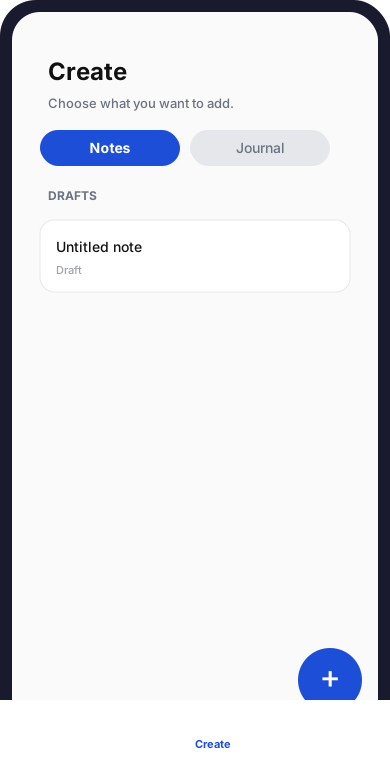
Create tab: Notes or Journal segment, draft list, and + button.
Two content types
Section titled “Two content types”| Type | Title in the + menu | Subtitle (summary) | Typical use |
|---|---|---|---|
| Note | Note | Service or study notes — offline and synced. | Service, sermon, structured study, sections, verses, PDF export after publish |
| Journal entry | Journal entry | Write in rich text, mood and tags. | Personal journal, mood, tags, optional link to Tracking |
Both follow the same flow: draft → work → publish → visible in the Library.
Create a note or entry (+ button)
Section titled “Create a note or entry (+ button)”- Tap the + button (bottom right).
- A sheet opens with Note and Journal entry.
- Tap the type you want.
- Scripvio opens the editor for the new draft (or reopens an existing untitled draft — see below).
Shortcuts from Home
Section titled “Shortcuts from Home”Without opening Create first:
| Home action | Effect |
|---|---|
| New note | Creates or resumes a draft note |
| Drafts (quick actions) | Opens the Create tab |
| Resume journal | Opens an in-progress journal draft |
Untitled draft limits
Section titled “Untitled draft limits”To avoid piling up empty content, Scripvio limits untitled drafts:
| Type | Rule | Message when blocked |
|---|---|---|
| Note | At most two untitled draft notes | You already have two untitled notes. Give one of them a title before creating another. |
| Journal | At most one untitled draft entry | You already have one untitled journal entry. Give that draft a title before creating another. |
If you tap + when a limit is reached, the app reopens the existing untitled draft instead of creating another (with a warning).
Tip: set a title early in the editor to unlock new creations.
Notes and Journal segments
Section titled “Notes and Journal segments”Below the title, a segmented control switches between:
| Segment | What the list shows |
|---|---|
| Notes | All draft notes (unpublished) |
| Journal | All draft journal entries (unpublished) |
Each segment has its own list, search, and filters — Journal does not show notes and vice versa.
Draft list
Section titled “Draft list”Empty state
Section titled “Empty state”If you have no drafts in the current segment:
You don’t have any drafts yet. Use the buttons below to get started.
→ tap + to create a note or journal entry.
Resume a draft
Section titled “Resume a draft”- Choose the Notes or Journal segment.
- Tap a row in the list.
- The editor opens so you can continue writing.
Rows show title (or Untitled), excerpt, last updated, favorite, etc., like other lists in the app.
Search
Section titled “Search”- Search field at the top (free text in title / content depending on type).
- The list updates after a short pause while typing.
| Segment | Sort options (sort menu) |
|---|---|
| Notes | Last updated, created date, title (A→Z / Z→A), etc. |
| Journal | Last updated, created, entry date, title |
Filters
Section titled “Filters”| Filter | Notes | Journal |
|---|---|---|
| All / Favorites | Chips under the search bar | Same |
| Event type (service, study…) | Dedicated filter button (notes only) | — |
Scroll down to load more drafts when the list is long.
Load error
Section titled “Load error”If the list fails to load: Check your connection and try again. — often no network on first load; locally cached drafts may still be available depending on context.
Favorites on drafts
Section titled “Favorites on drafts”Each row has a favorite icon to mark important drafts. The Favorites filter shows only those. Favorites are useful before publish; after publish, you can manage favorites in the Library too.
Draft → published: typical flow
Section titled “Draft → published: typical flow”flowchart LR A[Create + or list] --> B[Draft editor] B --> C{Writing} C --> D[Publish] D --> E[Library] B --> F[Create draft list]| Step | Where | Action |
|---|---|---|
| 1 | Create → + or list | Create or reopen a draft |
| 2 | Editor | Write (title, body, sections, verses, mood…) |
| 3 | Editor | Publish when ready |
| 4 | Library | Read, search, export (note PDF) |
→ Drafts and published content
Edit already published content
Section titled “Edit already published content”Content already in the Library is not heavily reworked in the published list: you create a new version as a draft, edit under Create, then publish again to replace the visible version.
Summary:
- The Library keeps the old published version until the new draft is published.
- The working draft appears in Create (matching segment).
Details: Notes and Journal guides.
Create vs Library vs Home
Section titled “Create vs Library vs Home”| Need | Right place |
|---|---|
| New note or journal | Create → + |
| Resume a draft | Create → Notes or Journal segment |
| Read published content | Library |
| Search your published texts | Library (not Bible Search) |
| Add a verse from the Bible | Search → pick a draft only |
| Day overview, quick resume | Home |
Bible Search and Tracking
Section titled “Bible Search and Tracking”| Feature | Link to Create |
|---|---|
| Bible search | Verses can be added only to a draft note or journal (not to published Library content) |
| Tracking (prayer, meditation…) | May offer to link an activity to a draft journal entry |
If no draft appears in Search’s picker: create one from Create → +.
Frequently asked questions
Section titled “Frequently asked questions”Why isn’t my note in the Library?
It is probably still a draft. Open it from Create and tap Publish.
I published by mistake — can I undo?
Depending on available screens, you may switch back to draft mode or create a new version; see Notes / Journal guides.
Journal segment is empty but I have draft notes.
Check the Notes segment — lists are separate.
Can I create without Internet?
Yes to open the editor and write locally; initial creation and sync may need network at some point. Retry online if creation fails.
Where is the + button?
Bottom right on Create, above the tab bar.
Detailed guides by type
Section titled “Detailed guides by type”| Topic | Link |
|---|---|
| Create and edit a note | Create a note |
| Draft and publish (notes) | Draft and publish |
| Create a journal entry | Create a journal entry |
| Draft and publish (journal) | Draft and publish |
| Draft vs published rule | Drafts and published |
| Library (reading) | Library |
| Offline | Offline mode |
Next in the docs
Section titled “Next in the docs”Once Create is clear, continue with the content type you use most (service notes → Notes section; personal journal → Journal section).